
Welcome back to my Salesforce Apex tutorial series! If you’ve been following along, you’ve set up your environment, mastered syntax and data types, and built classes and objects. Now, it’s time to tackle the core of Apex programming: working with data. In this Salesforce SOQL tutorial, we’ll explore how to query and manage Salesforce data using SOQL (Salesforce Object Query Language), SOSL (Salesforce Object Search Language), and DML (Data Manipulation Language) operations.
In this post, I’ll break down these tools with detailed explanations, hands-on examples, and tips from my own journey to help you learn Apex data management. Whether you’re new to Apex programming for beginners or leveling up your skills, this post will show you how to interact with Salesforce records like a pro. Let’s dive into the data!
Why Data Matters in Apex
Salesforce is all about data—Accounts, Contacts, Opportunities, and custom objects drive every org. While point-and-click tools like reports and flows can handle basic tasks, Salesforce Apex programming lets you manipulate data with precision and power. That’s where SOQL, SOSL, and DML come in:
- SOQL: Queries specific records, like SQL but tailored for Salesforce.
- SOSL: Searches across multiple objects for text matches.
- DML: Inserts, updates, deletes, or upserts records.
When I started with Apex, I was amazed at how these tools let me automate processes, like updating leads or syncing data—that manual work couldn’t touch. This post will get you there, step by step.
SOQL in Apex: Querying Salesforce Data
What is SOQL?
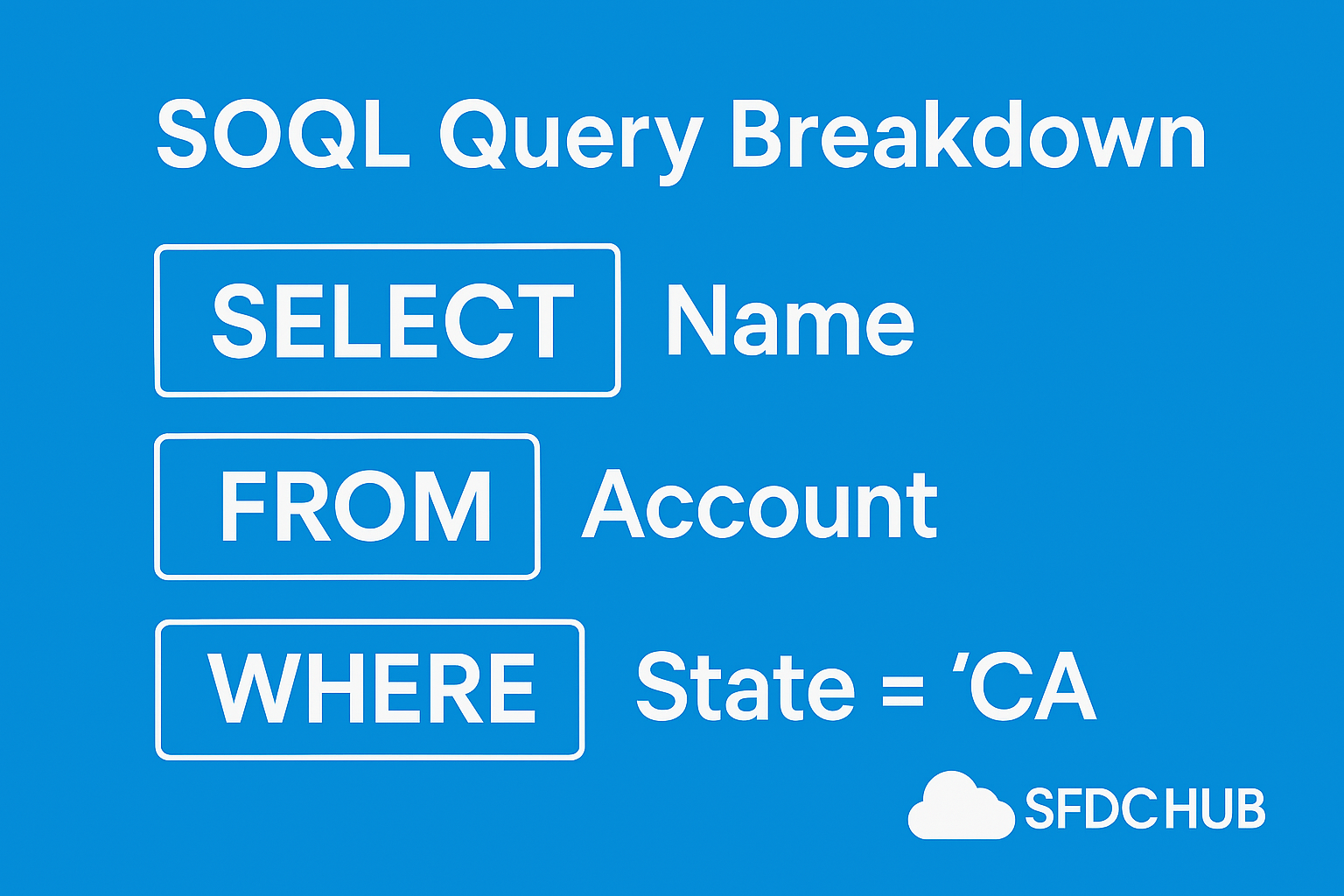
SOQL is your go-to tool for retrieving Salesforce data in Apex programming. It’s like SQL but designed for Salesforce objects, letting you fetch records with specific fields and conditions. Think of it as asking, “Hey, Salesforce, give me all Accounts in California.”
Here’s a basic SOQL query in Apex:
List<Account> accounts = [SELECT Name, Industry FROM Account WHERE BillingState = 'CA'];
System.debug('Found ' + accounts.size() + ' accounts.');SELECT: Specifies fields (e.g., Name, Industry).FROM: Targets an object (e.g., Account).WHERE: Filters results (e.g., BillingState = ‘CA’).- Square brackets
[]: Executes the query inline.
The result is a List of Account Objects you can loop through:
for (Account acc : accounts) {
    System.debug(acc.Name + ' - ' + acc.Industry);
}
Advanced SOQL Features
SOQL gets more powerful with these tricks:
- Relationships: Query related objects.
- Child-to-Parent (e.g., Contact to Account):
List<Contact> contacts = [SELECT FirstName, Account.Name FROM Contact WHERE Account.Industry = 'Technology'];- Parent-to-Child (subquery):
List<Account> accWithContacts = [SELECT Name, (SELECT LastName FROM Contacts) FROM Account];- ORDER BY: Sort results.
List<Opportunity> opps = [SELECT Name, Amount FROM Opportunity ORDER BY Amount DESC];
- LIMIT: Cap the number of records.
List<Lead> leads = [SELECT Email FROM Lead LIMIT 5];
- Dynamic SOQL: Build queries at runtime.
String query = 'SELECT Name FROM Account WHERE Industry = \'Energy\'';List<Account> results = Database.query(query);
I once used dynamic SOQL to filter records based on user input—super flexible!
SOSL: Searching Across Objects
What is SOSL?
SOSL is Salesforce’s search tool, designed to find text across multiple objects. Unlike SOQL’s precision, SOSL is broader—think “Google for Salesforce.” It’s perfect when you don’t know exactly where data lives.
Here’s a basic SOSL query:
List<List<sObject>> results = [FIND 'Acme' IN ALL FIELDS RETURNING Account(Name), Contact(FirstName)];
System.debug('Accounts: ' + results[0]); // List<Account>
System.debug('Contacts: ' + results[1]); // List<Contact>
FIND 'Acme': Searches for “Acme.”IN ALL FIELDS: Looks in all searchable fields.RETURNING: Specifies objects and fields.- Returns a
ListofList<sObject>—one list per object.
When to Use SOSL
- Multi-Object Search: Find “John” in Leads, Contacts, and Accounts at once.
- Text-Based: Great for fuzzy matching or partial terms.
- Speed: Faster for broad searches than multiple SOQL queries.
Example with filters:
List<List<sObject>> searchResults = [FIND 'tech*' IN NAME FIELDS RETURNING Account(Name WHERE Industry = 'Technology'), Opportunity(Name)];SOSL saved me when I needed to search customer names across objects—SOQL alone couldn’t cut it.
DML: Managing Salesforce Data
What is DML?
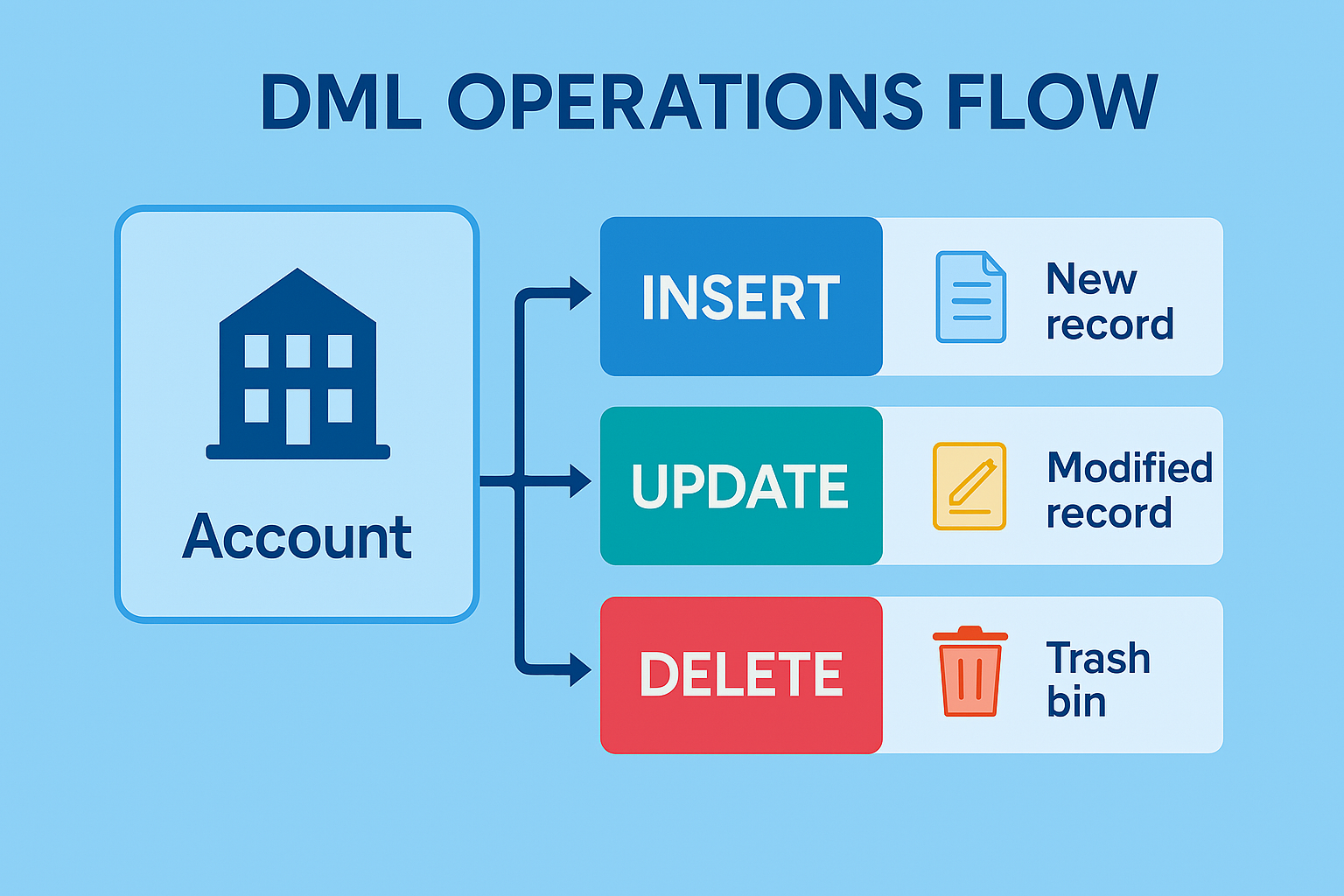
DML in Apex programming handles data changes—inserting, updating, deleting, or upserting records. It’s how you make your queries actionable. Apex offers two ways to do DML: direct statements and Database methods.
DML Statements
Simple and straightforward:
- Insert:
Account newAcc = new Account(Name = 'NewCo', Industry = 'Retail');
insert newAcc;- Update:
newAcc.Industry = 'Tech';
update newAcc;- Delete:
delete newAcc;- Upsert (Insert or Update):
Account upsertAcc = new Account(ExternalId__c = '123', Name = 'UpsertCo');
upsert upsertAcc ExternalId__c; // Uses custom field as key
Database Methods
These offer more control, like partial success:
- Insert:
Database.SaveResult result = Database.insert(newAcc, false); // False allows partial success
if (!result.isSuccess()) {
    System.debug('Error: ' + result.getErrors()[0].getMessage());
}- Update, Delete, Upsert: Similar syntax with Database.update(), etc.
Use Database methods when you need error details or bulk operations—I lean on them for big updates.
Bulkifying Your Code
Salesforce enforces governor limits—like 100 SOQL queries per transaction—so you must “bulkify” your code to handle multiple records efficiently.
Bad Example (Not Bulkified)
List<Contact> contacts = [SELECT Id, Email FROM Contact];
for (Contact c : contacts) {
    c.Email = '[email protected]';
    update c; // One DML per record—limit exceeded fast!
}
Good Example (Bulkified)
List<Contact> contacts = [SELECT Id, Email FROM Contact];
for (Contact c : contacts) {
    c.Email = '[email protected]';
}
update contacts; // Single DML for all
Bulkification was a game-changer for me—my first big script crashed until I learned this!
Practical Example: Lead Manager
Let’s combine SOQL, SOSL, and DML in a real-world example—a lead management class:
public class LeadManager {
    public static void manageLeads() {
        // SOQL: Find leads with no email
        List<Lead> leadsToUpdate = [SELECT Id, FirstName, Email
                                   FROM Lead
                                   WHERE Email = null
                                   LIMIT 10];

        // Update leads
        for (Lead l : leadsToUpdate) {
            l.Email = l.FirstName.toLowerCase() + '@example.com';
        }
        if (!leadsToUpdate.isEmpty()) {
            Database.SaveResult[] results = Database.update(leadsToUpdate, false);
            for (Database.SaveResult sr : results) {
                if (!sr.isSuccess()) {
                    System.debug('Error: ' + sr.getErrors()[0].getMessage());
                }
            }
        }

        // SOSL: Search for duplicates
        List<List<sObject>> duplicates = [FIND 'example.com'
                                         IN EMAIL FIELDS
                                         RETURNING Lead(Id, Email)];
        List<Lead> duplicateLeads = (List<Lead>)duplicates[0];

        // Delete duplicates
        if (!duplicateLeads.isEmpty()) {
            delete duplicateLeads;
        }

        // Insert a new lead
        Lead newLead = new Lead(LastName = 'Smith', Company = 'NewCo', Email = '[email protected]');
        insert newLead;

        // Verify
        List<Lead> allLeads = [SELECT Email FROM Lead];
        System.debug('Total Leads: ' + allLeads.size());
    }
}
Run it with LeadManager.manageLeads();. This:
- Uses SOQL to find leads without emails.
- Updates them with DML.
- Searches for duplicates with SOSL.
- Deletes and inserts records.
This mirrors a task I built to clean up lead data—practical and powerful!
Error Handling and Best Practices
Try-Catch for DML
DML can fail (e.g., validation rules), so wrap it in try-catch:
try {
    insert newLead;
} catch (DmlException e) {
    System.debug('DML Error: ' + e.getMessage());
}
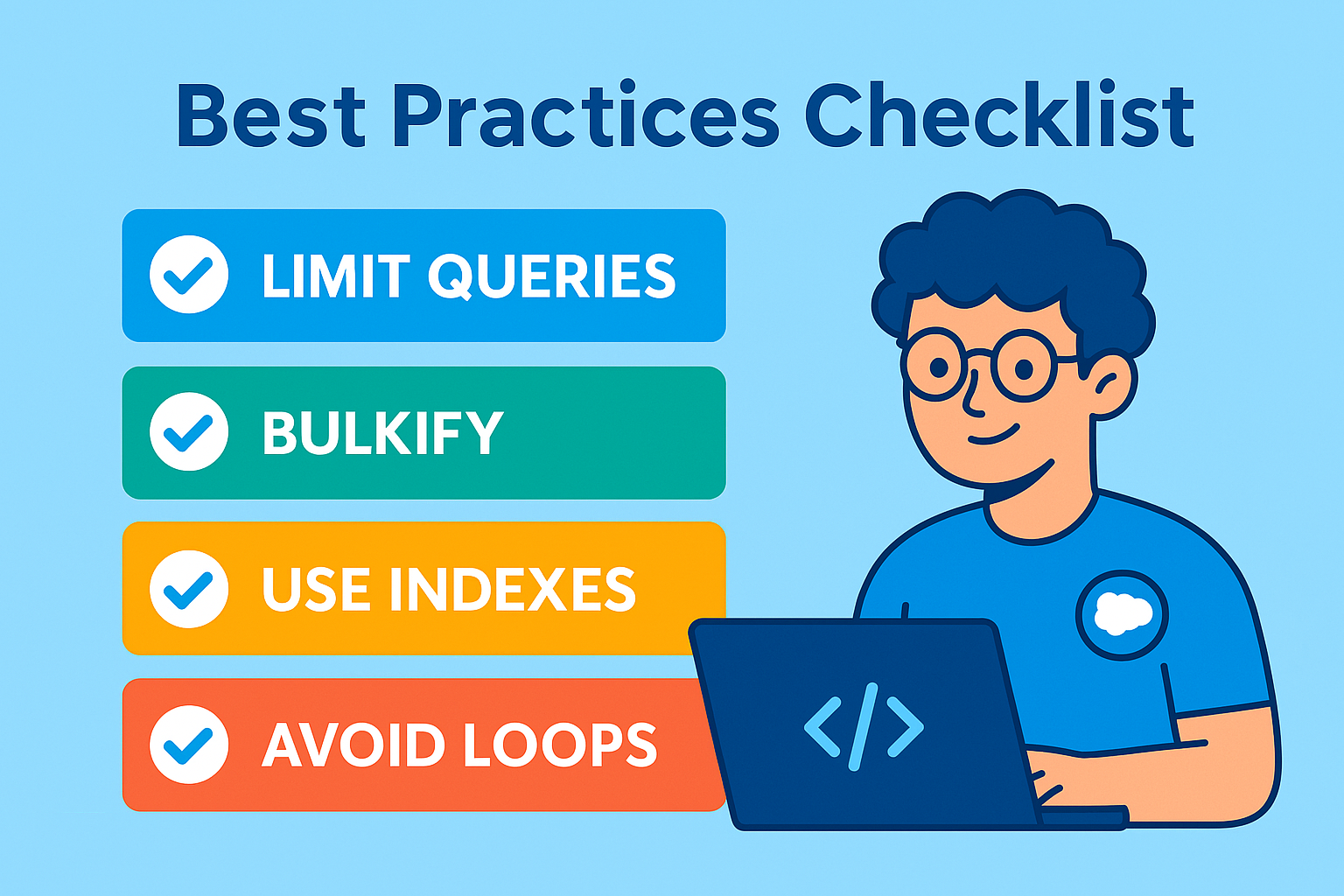
Best Practices
- Limit Queries: Stay under governor limits (e.g., 100 SOQL queries).
- Bulkify: Process lists, not single records.
- Field Selection: Only query fields you need—SELECT * isn’t valid in SOQL!
- Test Data: Use test records in a sandbox to avoid surprises.
I learned error handling after a failed update locked my org—don’t skip it!
References
Conclusion
In this Salesforce SOQL tutorial, we’ve mastered Apex data management with SOQL, SOSL, and DML. You can now query specific records, search broadly, and manipulate data—all key to learn Apex programming. This opens up automation and customization in Salesforce like never before.
Next, we’ll explore triggers to automate processes. For now, tweak the LeadManager—maybe add a new SOQL filter or SOSL term. Practice makes perfect in Salesforce Apex programming!
Thanks for joining me—see you in the next post!

Abhishek
Mr. Abhishek, an experienced Salesforce Application Architect with over 10+ years of development experience and 12x Salesforce Certified. His expertise is in Salesforce Development, including Lightning Web Components, Apex Programming, and Flow has led him to create his blog, SFDC Hub.